

User Management
Product Hub’s User Management tools allow your team to handle customer accounts and license modifications directly. Whether managing routine onboarding or resolving specific customer support requests, this interface provides the tools needed to keep your users running smoothly.
User types
Section titled “User types”The Product Hub supports two kinds of users:
- Manufacturer User / System User (Administration of your manufacturer realm in Product Hub)
- User (End User, Customer)
This section covers how to:
- Create and clean up user profiles.
- Add, remove, and transfer product licenses.
- Reset trial periods to extend evaluation windows.
- Authorize products offline for disconnected systems.
- User channels (Alpha, Beta, Testing, Release) - See Channels in Product Hub -> Channels
Create User
Section titled “Create User”- Click on Users
- Click on Create User
- Define the users emailadress and click save.
- External ID - This will be usually set by the connected API, so you can keep this empty.
Note: Creating the user in Product Hub does not create it in your SSO service that you configured as your end user authentication system. However it can still make sense to create them here under certain circumstances. Example: You want to assign licenses to someone not yet signed up with your company. By creating the user here (if you know the email they’ll use to sign up with that is), you can alreday assign licenses before asking them to sign-up with your company. Once they can log in through your SSO service, they can also activate products you assigned them licenses for immediately.
A user created this way is automatically assigned to the 'Release Channel'.To assign this user to other Channels (Alpha, Beta, Testing), reopen the user via Edit and assign the user to the desired channels.
UJAM App: Only users that are assigned to at least one of Alpha, Beta or Testing Channel can see a select box to choose a product delivery channel in the app when logged in.
Create a license
Section titled “Create a license”- Go to Users and find the user by their email address.
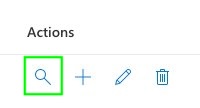
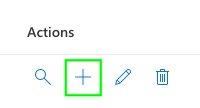
- Once you’ve found the user, click the magnifying glass icon to view all licenses in their account or click the plus icon to create a license for the user.
- Click New in the bottom right.
- Select the Product and License Type (NFR, Standard or Free).
- Click Create and the product license will be immediately assigned to the user.
Remove license (cancelled or duplicate orders)
Section titled “Remove license (cancelled or duplicate orders)”- Go to Users and find the user by their email address.
- Once you’ve found the user, click the magnifying glass icon to view all licenses in their account.
- Click the Deactivated checkbox.
- Choose the reason for this action: Duplicate Order, Cancelled Order or Fraudulent Use
- Click Confirm and the license will be deactivated.
Transfer license
Section titled “Transfer license”- Go to Users and find the user by their email address.
- Once you’ve found the user, click the magnifying glass icon to view all licenses in their account.
- Click the Transfer License button.
- Find and select the destination user’s email address.
- If the user has many licenses, scroll down to locate and click the Ok button. This will immediately transfer the license.
- Go back to Users and search for the destination user’s email address and check if the license is transferred successfully.
Reset Trial
Section titled “Reset Trial”Reset a user’s trial period for a specific product. How to Reset a Product Trial:
- Go to My Products and find the relevant product.
- Click the Product Trials button.
- Locate the user’s fingerprint and click the trash icon.
- Important: There is no confirmation prompt. Clicking the trash icon immediately deletes the trial from the database.
Also the user needs to delete the local OPS file to restart a trial.
Offline authorization
Section titled “Offline authorization”The ProductHub JavaScript client library allows you to have a procedure to write a so called “offline .ops file” on your users’ machines. This has the sole purpose of determining the users’ hardware fingerprints. The following procedure is enabled by you implementing that functionality in your plugin and the user sending that offline .ops file to your support.
- Go to Users and find the user by their email address.
- Once you’ve found the user, click the magnifying glass icon to view all licenses in their account.
- Click the Download license button.
- Provide the user fingerprint.
- Select the correct Signature Seed (Version 4,5 or 6) for the product. For non-UJAM products this is always at least 6.
- Click Download and save the OPS-File.
- Send the .-ops file back to the user asking them to put it where your plugin expects it. Usually this is /Users/
/Library/Application Support/ / on macOS and C:\Users<username>\AppData\Roaming<manufacturername><productname> on Windows.
Edit User
Section titled “Edit User”- Go to Users and find the user by their email address.
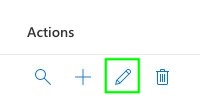
- Click on the pencil icon (Edit) to make changes to the user’s email address. The external id is filled when the user logs in through the connected end user auth system.
Delete User / Clean Up User Profiles
Section titled “Delete User / Clean Up User Profiles”You can schedule a user for deletion by clicking the trash can icon.
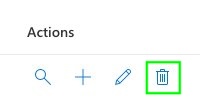
Once a user is scheduled for deletion they are in a grace period of 6 months. During this period the user record including the licenses are retained to allow for data retrieval. Even though the record still exists, the account can not be used anymore. Clicking “Clean Up Users” strips the email and external id from user records that are no longer in the grace period. After this Data retrieval is no longer possible.