Table of contents
⚠️Note: The following instructions were created in 2023 and might not be up-to-date. The official Certum website may included updated information.
Introduction
Code-signing is essential for verifying the integrity of your software. When you digitally sign code, you assure your users that it hasn’t been altered and originates from a trusted source. Generally, there are two different validation methods: Basic and Extended Validation (EV). While both basic and EV certificates technically offer the same level of security, software signed with an EV certificate can immediately establish trust, skipping the Windows SmartScreen warning that usually appears for lesser-known publishers. That’s why we recommend using EV code-signing certificates. They undergo stricter identity checks, leading to greater user trust and smoother installations. This guide will walk you through purchasing and activating an EV certificate for this reason.
Why Certum?
Certum is a standout choice for code-signing certificates for two primary reasons. First, they offer cloud-based signing, a feature available from only a few providers. This eliminates the need for a hardware dongle, making it possible to use cloud-based machines without physical access for code signing. Second, Certum is one of the most cost-effective options on the market. While the user experience of their website and shop leaves something to be desired, the affordability may outweigh this drawback.
Prerequisites
As outlined above, acquiring an EV code-signing certificate requires a strict identity check of yourself and your company.
⚠️ Note: Check out https://support.certum.eu/en/code-signing-required-documents/ to learn which documents are required before purchasing an EV code-signing certificate.
Acquiring a Certificate
To sign your code, you’ll need an account with a Certificate Authority (CA) that will store, sign and issue your digital certificates. The Certificate Authority acts as a trusted party that you (the owner of the code) and your customer’s computer turn to in order to verify that a piece of software can be trusted.
The process of acquiring a certificate involves going through the Certum online shop, getting an app on a separate device installed (to serve as a second factor), and installing the certificate on your build machine. If you have an agreement with UJAM that we sign on your behalf, we will manage the second factor for you and will install the certificate on our build machine.
Please follow these steps to acquire your certificate:
- Head over to https://shop.certum.eu/data-safety/code-signing-certificates.html/ and select the EV Code Signing in the Cloud.
- Choose the desired validity period (we usually go with 1 year to reevaluate market conditions then).
- Purchase the certificate.
You will get an email with an activation link to set up the SimplySign mobile app. Based on whether you sign yourself or have UJAM sign on your behalf, follow the respective steps below.
For Customers Signing on Their Own
If you plan to sign your software on your own, set up the SimplySign app on your phone as outlined in the activation email. This app will generate time-based one-time passwords (TOPT) that are required for the initial installation of the certificate, but also on a regular basis to continue using the certificate for signing.
⚠️ Hint: Certum is following the TOTP standard, so you can scan the activation QR code with any 3rd-party TOTP app such as Google Authenticator, Authy, or 1Password.
For Customers Who Have UJAM Sign on Their Behalf
If you have an agreement with us that we will sign the software in your name, you will need to make the activation code available to us.
Please forward the email with the activation code to us, so we can generate time-based one-time passwords (TOTPs) on your behalf. Note that we will need to have permanent access to these TOTPs as they are required on a regular basis to continue using the certificate for signing.
Activating a Certificate
Once the purchase is successful, it’s time to activate the certificate:
- Log in to your account at https://shop.certum.eu/
- Click “Manage Certificates”
You should see a list of your certificates, showing “Awaiting activation”.
It will first require you to verify your email address: 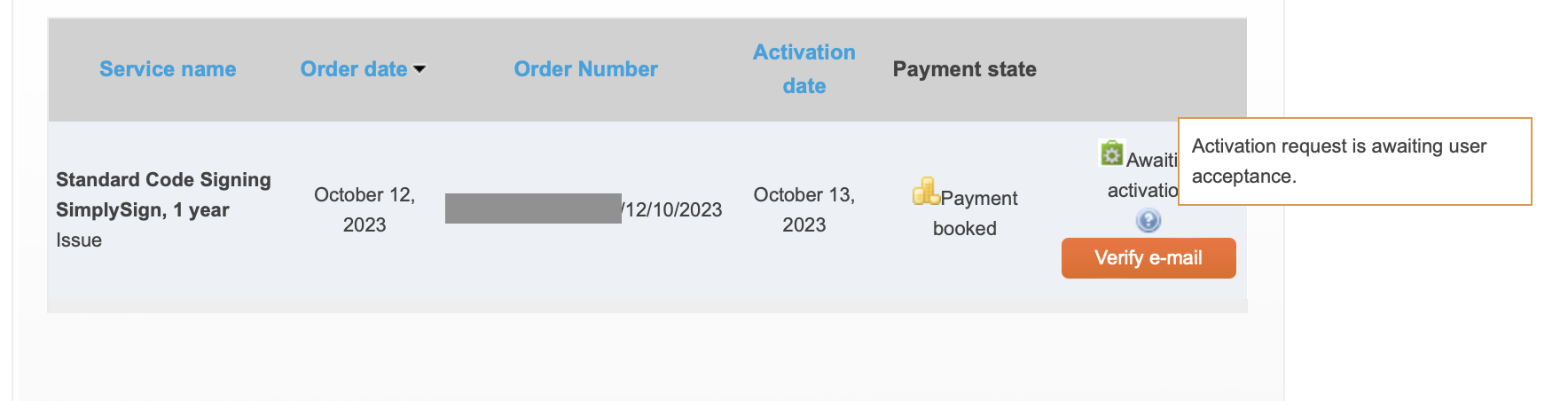
Then you should see an “Activate” button that will start the activation process: 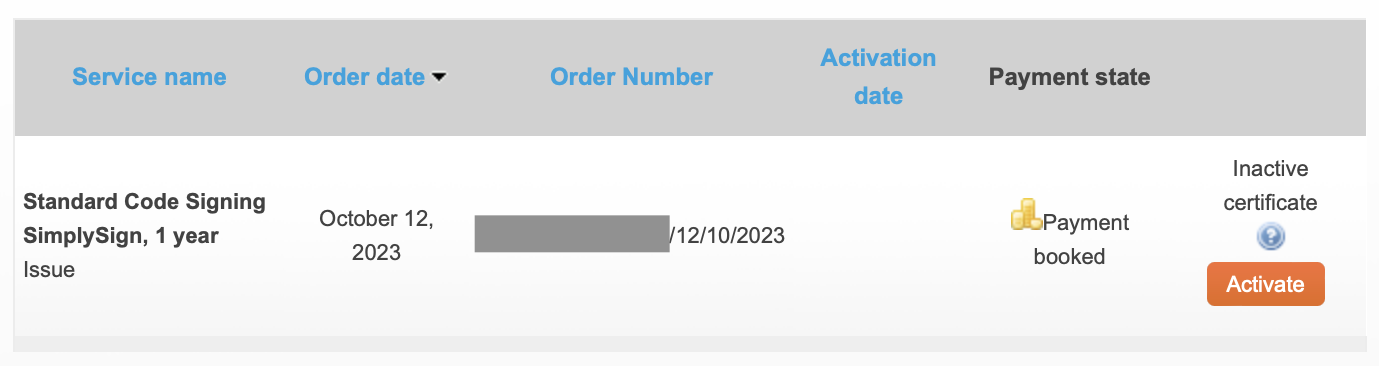
Leave the delivery method set to “generating key by SimplySign service” and click next: 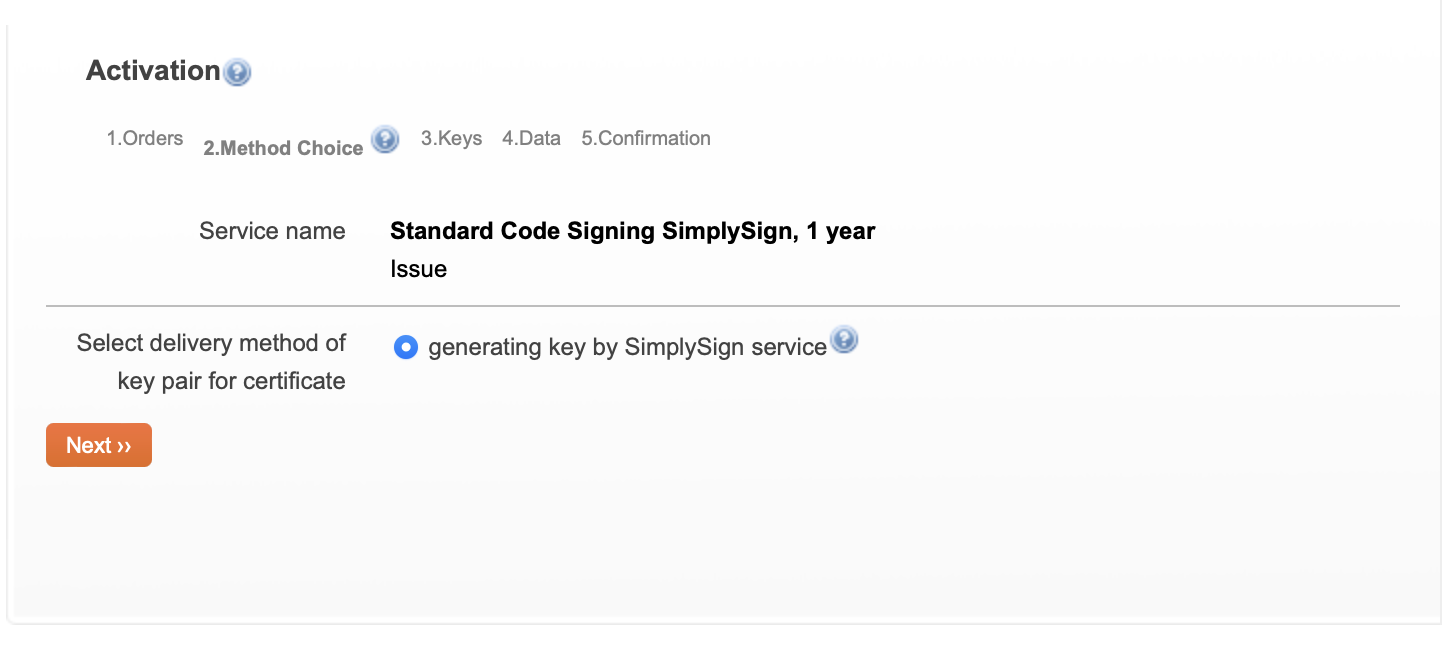
Keep the pre-selected Key size and click next: 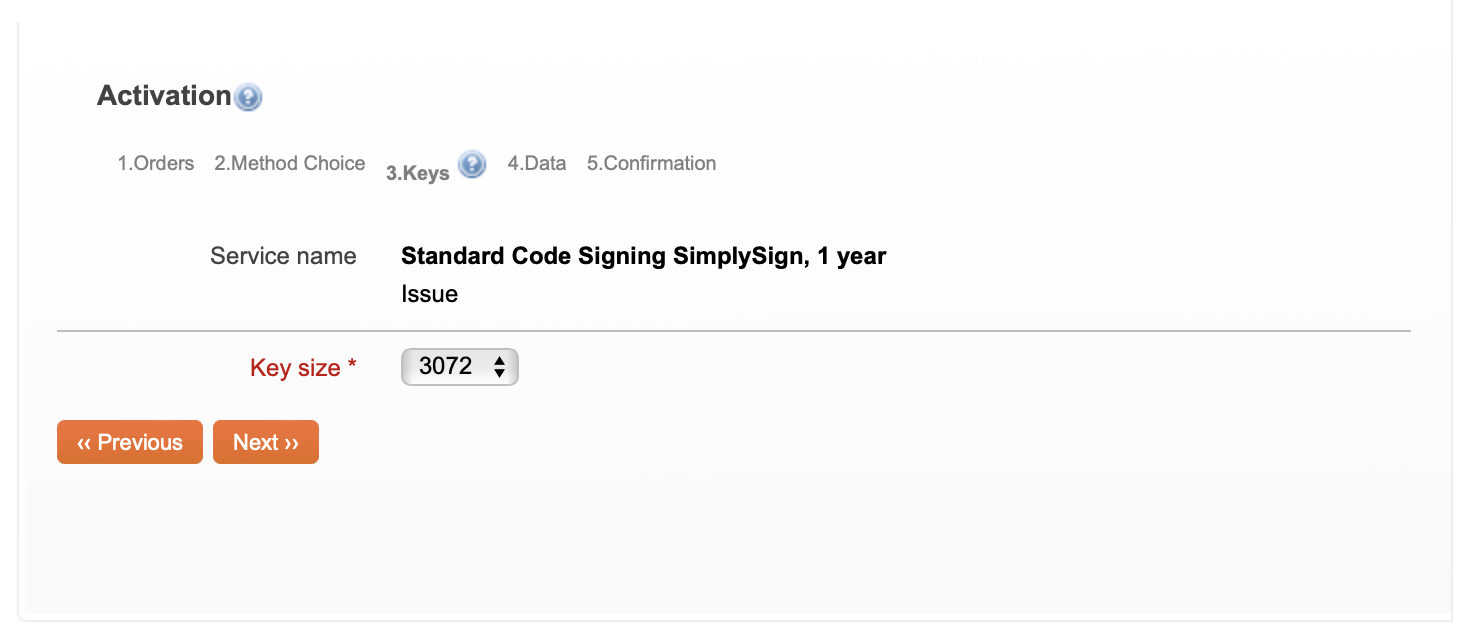
Fill in the certificate data: 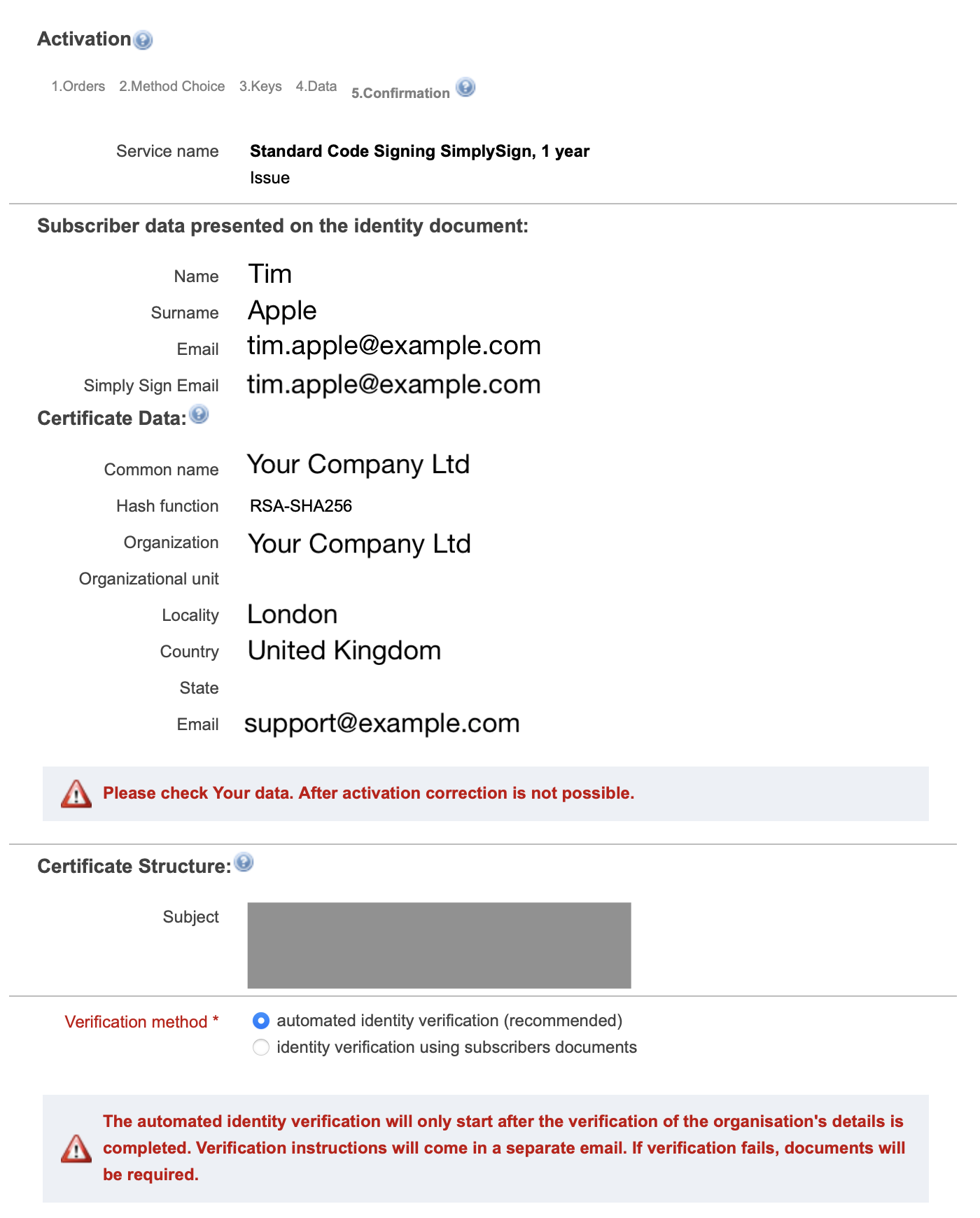
In “Subscriber data presented on the identity document”, fill in the details from your personal identity document. This will not be included in the certificate and is only for verification purposes.
In the second section “Certificate Data”, fill in the company data. This will be included in the certificate and will be visible to end users.
- Enter your company name as Common Name. This is what the user will see when installing the software product.
- We recommend using a generic or a support email address (i.e. info@example.com or support@example.com) rather than a personal email address.
Ensure that everything is correct and finalize the activation.
⚠️ Note: It’s common to receive follow-up emails for additional verification, especially if your details don’t match public records. You may be asked to manually confirm your phone number or other information. Keep an eye on your email inbox to expedite the process.
If you have an agreement with UJAM in place that we will sign on your behalf, please let us know once this step is completed and we will install the certificate on our build machine.
If you sign on your own, please follow the instructions in the next section to get the certificate installed on your build machine.
Installing a Certificate
Install the SimplySign Desktop app on your build machine. You can download it here: https://support.certum.eu/en/cert-offer-smart-sign/
Once installed, right-click on the app’s icon in the system tray and select “Connect to SimplySign”: 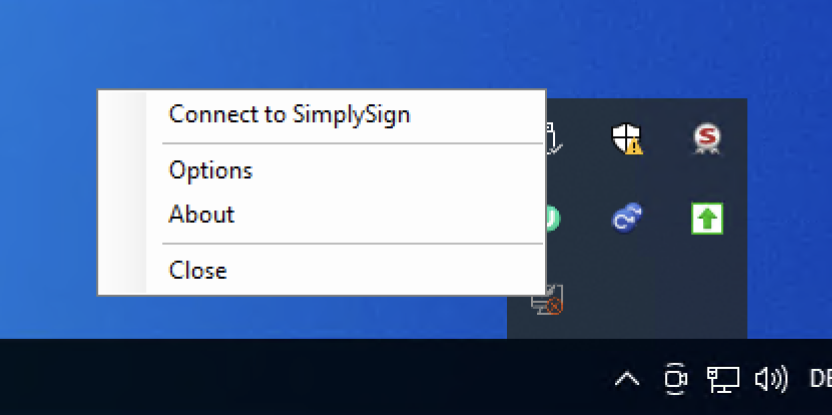
It will now ask you for your email address and a token (this is the token generated by the SimplySign app or your 3rd-party authenticator app): 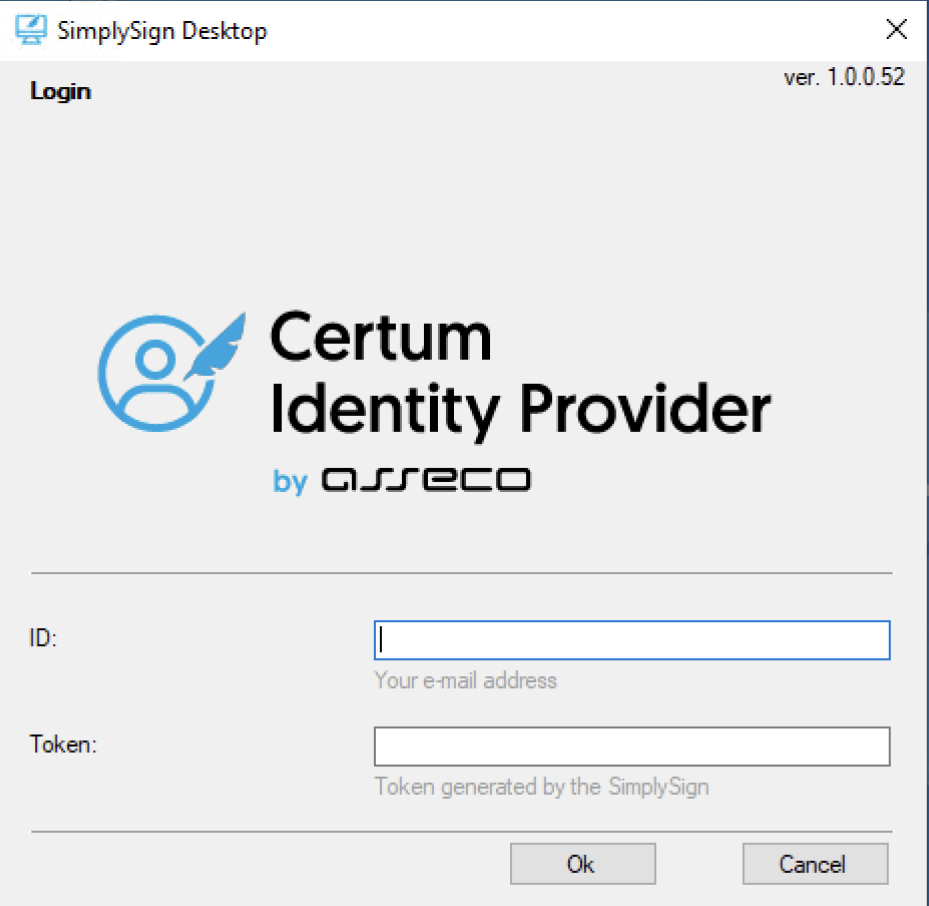
Once connected, right-click the icon again and select Manage certificates › Certificate list. 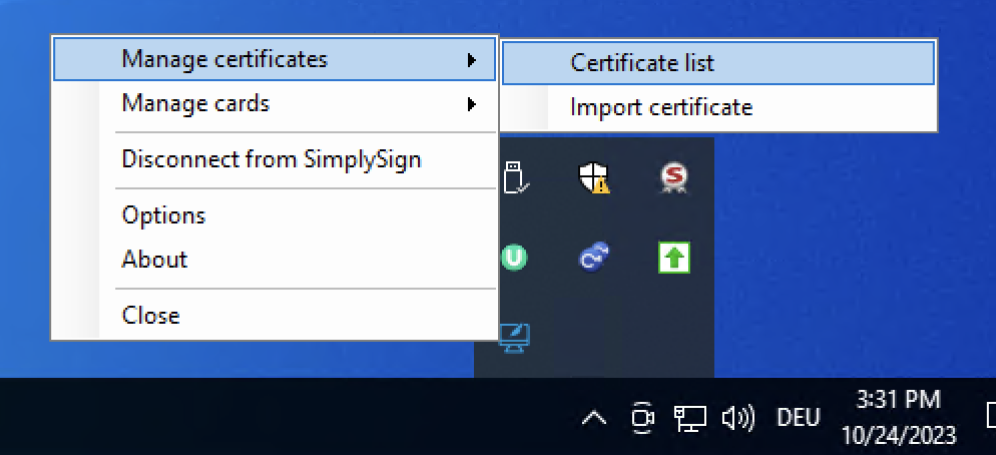
You will now see the certificates that are present in your Certum account: 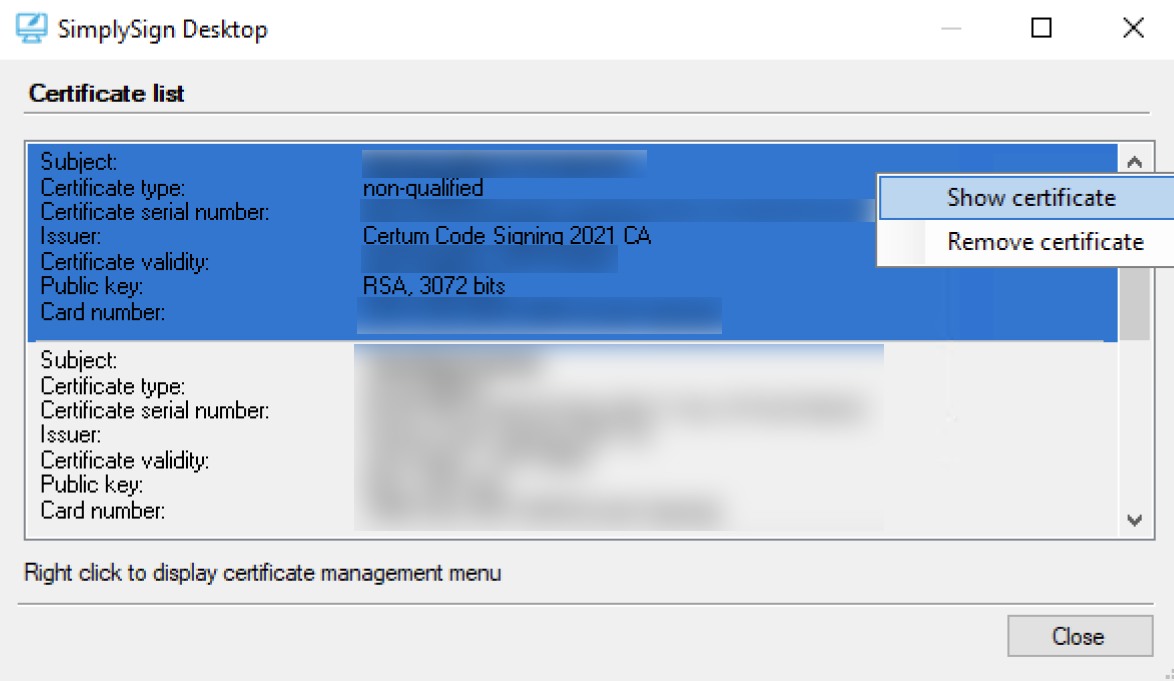
Right-click the certificate and select “Show certificate”. 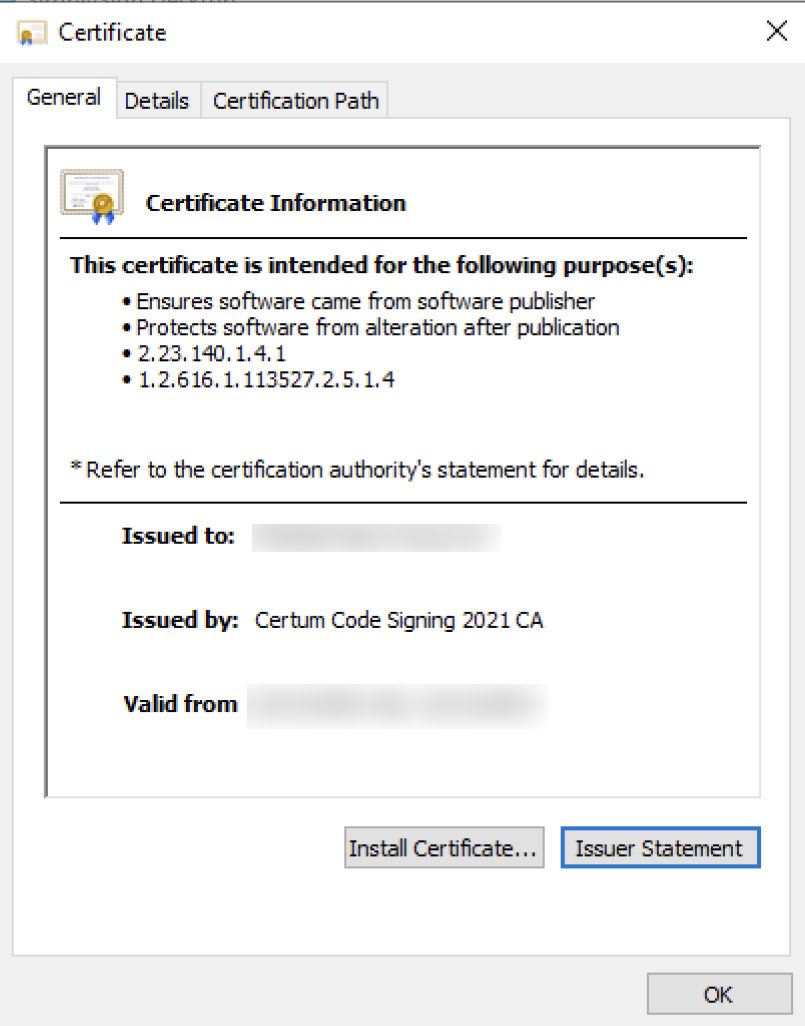 Verify that “Issued To” is set to your company name. This will show up when a user installs your software.
Click “Install Certificate…”
You can either set Store Location to “Current User” or “Local Machine”. We recommend “Current User” to make the certificate available to the current user only. 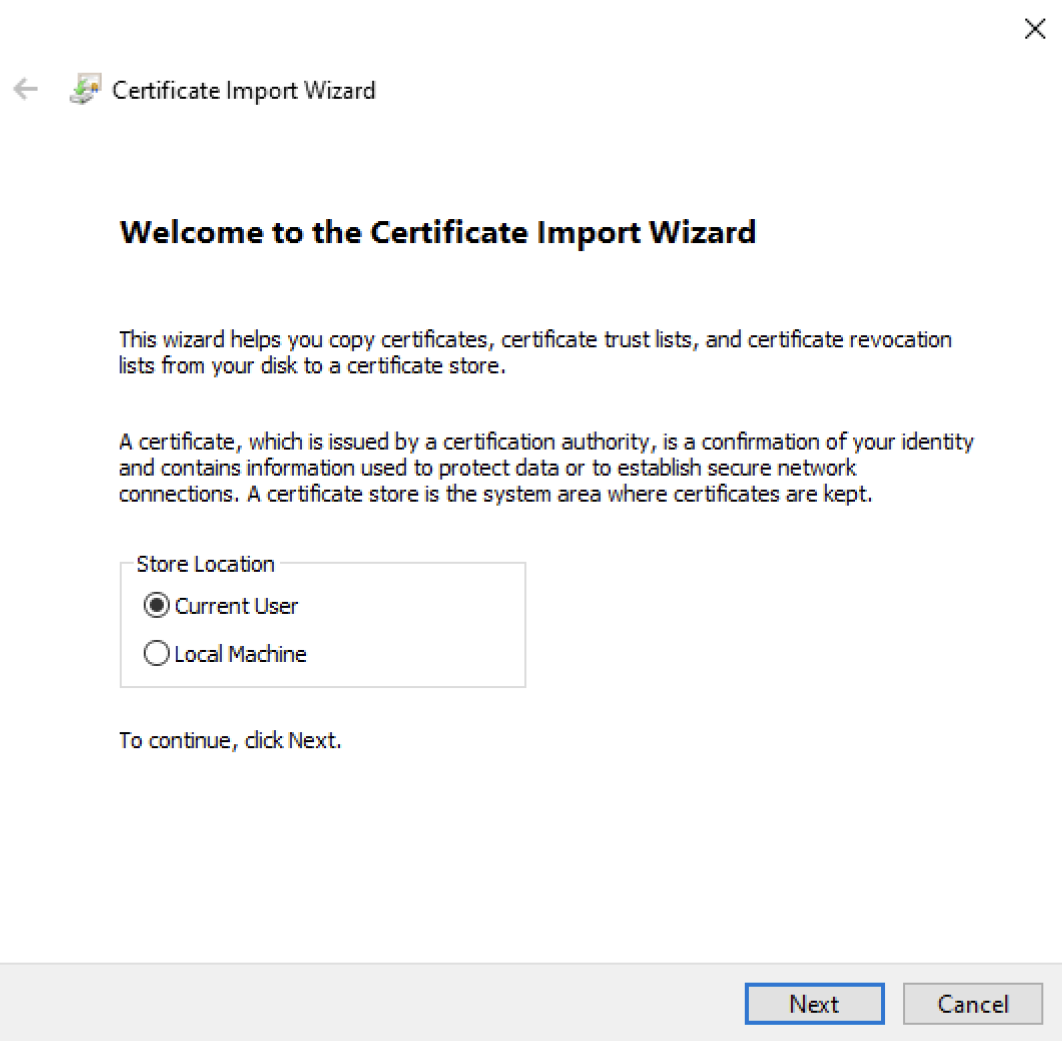
Leave the default option “Automatically select the certificate store…” selected: 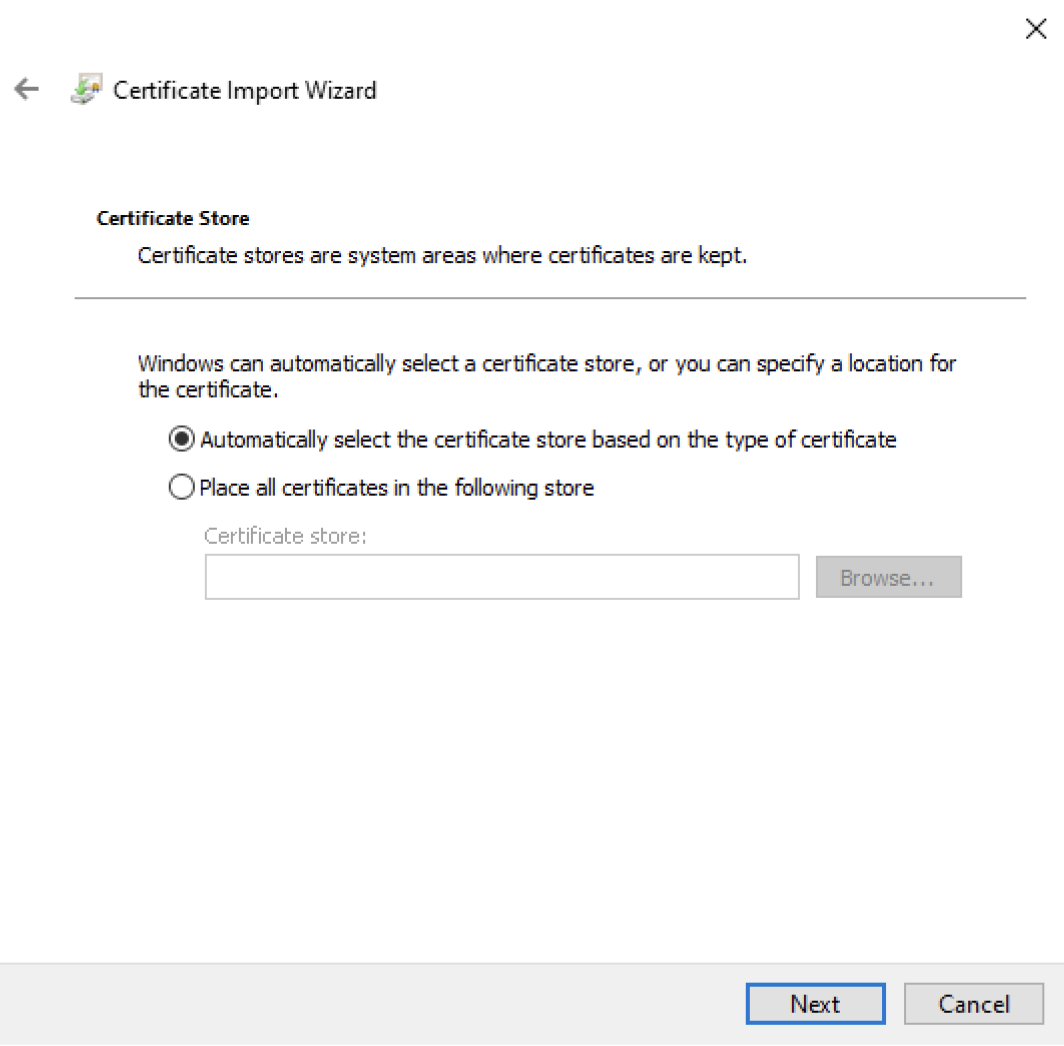
Once the wizard is completed, you can verify in Windows Certificate Manager that the certificate was correctly installed. You can open it by pressing Windows key + R and entering certmgr.msc. Go to Personal › Certificates. You should see the certificate in the list. 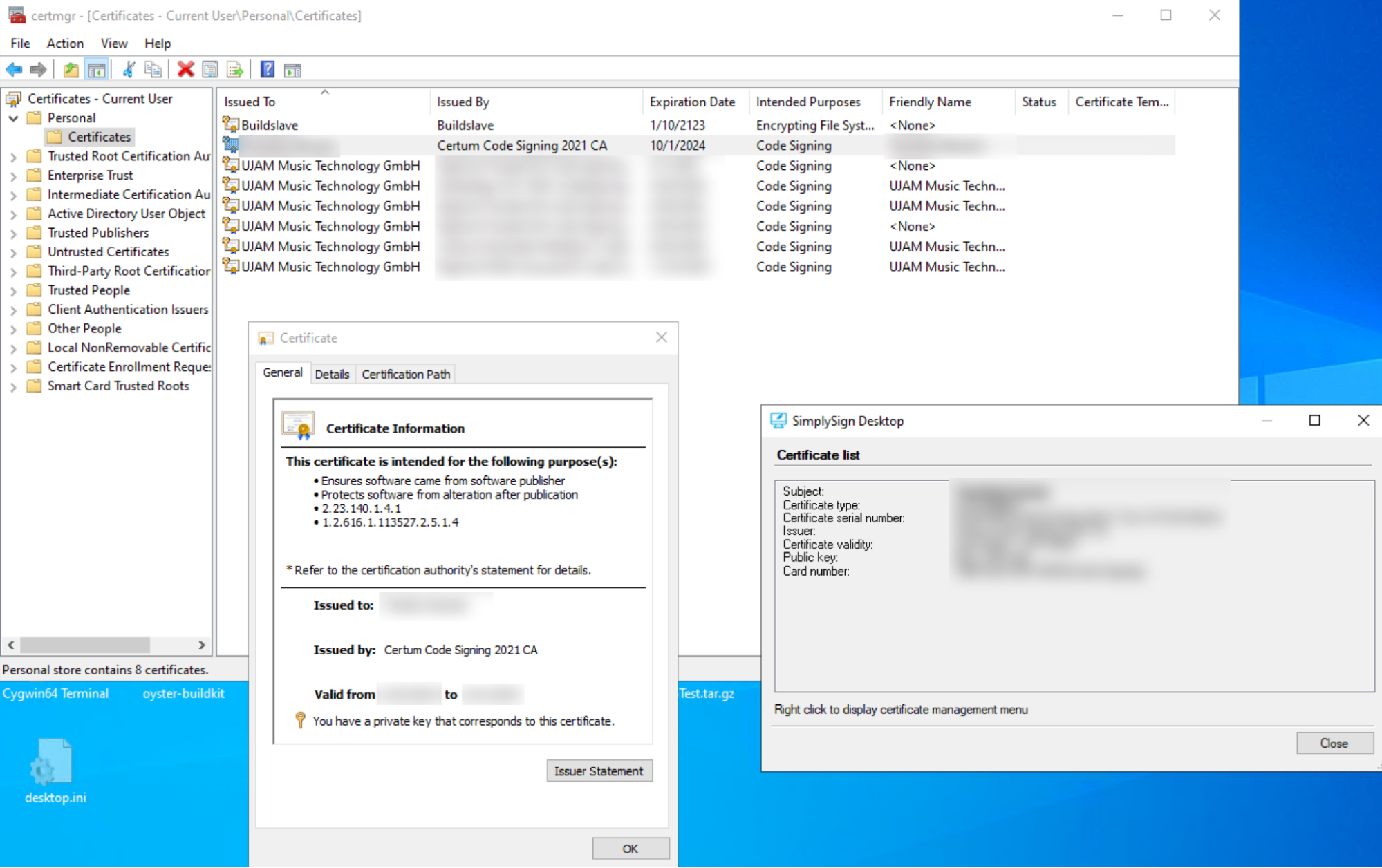
You are now ready to sign your software with your certificate.