Table of contents
UI Resizing Example
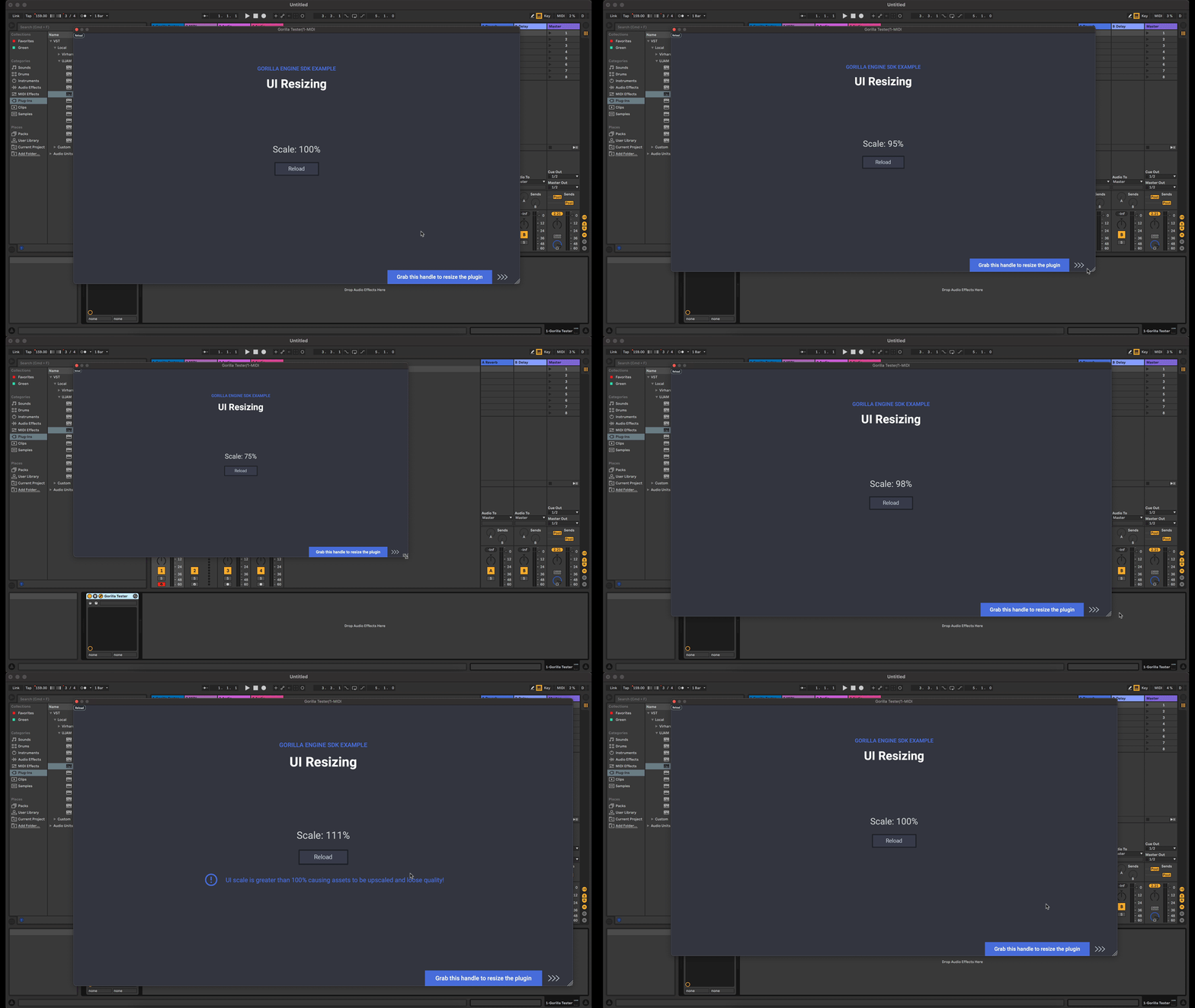
This example of a resizable plugin window can be found in the Examples folder of the Gorilla Engine SDK. It showcases how any Gorilla Engine based plugin UI can be made scalable.
This example demonstrates:
- How to create a resizable plugin window.
- How bind JavaScript properties to YAML.
UI Resizing - JavaScript
Note: The following is not intended to be a step-by-step guide on how to use Javascript and YAML (we have an introduction to UI development and a JavaScript reference for beginners). Instead we want to simply focus on how to create a scalable plugin window.
The following JavaScript code is identical to .js file found in the plugin_assets folder of the UI Resizing example.
 /**
 * Register error handlers
 */
function unhandledExceptionCallback(err) {
    GorillaEngine.showNativeMessageBoxSync({
        title: `Unhandled exception!`,
        message: `${err ? err.toString() : 'Unknown error'}`,
        iconType: 'warning'
    })
}
process.on('unhandledException', unhandledExceptionCallback)
GorillaEngine.registerUncaughtUIExceptionCallback(unhandledExceptionCallback)

/**
 * require some modules that we need
 */
const path = require('path')

/**
 * load a blob file, an instrument from that blob and activate the instrument
 */
const blobPath = path.join(GorillaEngine.getResourcePath(), `${GorillaEngine.getPluginName()}_part1.blob`)
const blob = GorillaEngine.loadBlob(blobPath)
const instrument = blob.loadInstrument(blob.getInstrumentNames()[0])
GorillaEngine.setActiveInstrument(instrument)

/**
 * enable midi input and audio output
 */
GorillaEngine.getPluginMM(true)
GorillaEngine.getPluginAE(true)


/**
 *
 *  UI RESIZING EXAMPLE BELOW
 *
 */


initViewModel('window', {
    // This property is updated when the UI is resized and needs to be saved in the plugin settings to be able to restore it between sessions.
    // It can also be set from the JavaScript ie. to reset the scale to a default value.
    scale: 1.0,
    scaleText: "",
    warningVisible: false,
    onScale(scale) {
        this.scaleText = `Scale: ${Number.parseInt(this.scale*100)}%`
        if (scale > 1.0) {
            this.warningVisible = true
        } else {
            this.warningVisible = false
        }
    },
    resetScale() {
        this.scale = 1.0
    }
})

const yamlPath = path.join(GorillaEngine.getResourcePath(), `${GorillaEngine.getPluginName()}.yaml`)
GorillaEngine.UI.loadUIfromYAML(yamlPath)
The code above allows us to:
- Provide an error message in case something goes wrong
- Load split blob files
- Create a viewmodel to observe the current scale
- Add a reset function to return the window to its default size
Let’s take it apart.
Creating an Error Message
When instantiating a plugin, there are many reasons why something may go wrong and this could potentially cause your DAW to crash. To avoid crashes (and also to prevent smaller errors from going unnoticed) you can create a generic error handler like this:
function unhandledExceptionCallback(err) {
    GorillaEngine.showNativeMessageBoxSync({
        title: `Unhandled exception!`,
        message: `${err ? err.toString() : 'Unknown error'}`,
        iconType: 'warning'
    })
}
process.on('unhandledException', unhandledExceptionCallback)
GorillaEngine.registerUncaughtUIExceptionCallback(unhandledExceptionCallback)
In this case the error handler catches unhandled exceptions. This could for example be the case, for example, if either part of the required split blob files is missing.
Loading a blob file
All Gorilla Engine based products, whether they are SDK examples or finished high-end plugins, are based on blob files. If you are not familiar with blob files, and how to create them, take a look at our Gorilla Editor documentation.
The following code snippet can universally be used to load blob files.
const blobPath = path.join(GorillaEngine.getResourcePath(), `${GorillaEngine.getPluginName()}_part1.blob`)
const blob = GorillaEngine.loadBlob(blobPath)
const instrument = blob.loadInstrument(blob.getInstrumentNames()[0])
GorillaEngine.setActiveInstrument(instrument)
Blob files are always split into two separate files. Part one is usually small and contains your product’s metadata and the “attack” portion of each sample. The second part is larger and contains the rest of your samples.
Creating a resizable plugin window
All plugin windows are resizable by default if the window nodes ui_scale_min and ui_scale_max properties are unequal (i.e., the window can be scaled up or down).
The following yaml snippet is very basic and parts of it can be applied to almost any Gorilla Engine based plugin.
window:
  width: 1280
  height: 720
  background_color: 393D47
  ui_scale&: window.scale # The current scale is bound to a JS view model so we can script funcitonality around it
  ui_scale_min: 0.75 # The minimum scale of the UI
  ui_scale_max: 1.25 # The maximum scale of the UI. !!!Note that any asset that scaled above a value of 1.0 is upscaled and looses visual quality!!!
  # Since ui_scale_min and ui_scale_max are different from each other
  # the plugin will automatically show the

  children:

    - label:
      x: 0
      y: 0
      width: 1280
      height: 720
      background_image: images/background.png
      text_align: center
      value&: window.scaleText
      alpha: .75
      children:
      - trigger:
        x: 590
        y: 380
        width: 100
        height: 20
        action: window.resetScale
        text: Reset
        background_color: 00FFFFFF
        keyboard_focus:
          color: 00FFFFFF
      - label:
        x: 0
        y: 50
        width: 1280
        height: 50
        value: Warning! UI scale is greater than 100% causing assets to be upscaled and loose quality!
        text_align: center
        visible&: window.warningVisible
        text_color: D04242
        font: Arial
        font_size: 24
Here is how we’ll make use of bound YAML properties in JavaScript:
ui_scale&: window.scalelets us observe and set the current plugin window’s scale (i.e., to store the value in the user’s preferences or to reset it to 100% when a button is clicked)value&: window.scaleTextto display the current scaleaction: window.resetScaleon a trigger to call the rest function in JavaScriptvisible&: window.warningVisiblemakes our warning only show up if the plugin window is greater than 100% scale
If you are looking for further information on JavaScript and YAML, take a look at our Gorilla Engine - JavaScript API Reference.
Working with the scale from JavaScript side
To provide users with the ability to adjust the window size of a plugin to their needs, employ the following code snippet. This will lay the ground work for your end product to not have a plain and static plugin window.
initViewModel('window', {
		/*
		 * scale
		 *
		 * This property is updated when the UI is resized
		 * and needs to be saved in the plugin settings
		 * to be able to restore it between sessions.
     * It can also be set from the JavaScript
     * ie. to reset the scale to a default value.
    */
    scale: 1.0,

    scaleText: "",
    warningVisible: false,

    /*
     * onScale(scale)
     *
     * This function in called whenever the
     * scale property of this view model changes.
     * It updates the scaleText property based on
     * the current scale and show or hides the warning
     * based on the current scale.
    */
    onScale(scale) {
        this.scaleText = `Scale: ${Number.parseInt(this.scale*100)}%`
        if (scale > 1.0) {
            this.warningVisible = true
        } else {
            this.warningVisible = false
        }
    },

  	/*
  	 * restScale()
  	 *
  	 * This function resets the scale to 1.0
  	 * and thus causes the window to resize to
  	 * the a scale of 100%.
  	*/
    resetScale() {
        this.scale = 1.0
    }
})
Note that in this example, we have also added a reset function and warning, which will appear if the plugin window is larger than 100% scale.
Linking from JavaScript to YAML
With JavaScript laying out, how we want our resizing to work, we need to enable it to communicate to its YAML counterpart. YAML will piece together the plugin you end up using in your DAW. In order to connect these two elements, just add the following to your JavaScript file.
const yamlPath = path.join(GorillaEngine.getResourcePath(), `${GorillaEngine.getPluginName()}.yaml`)
GorillaEngine.UI.loadUIfromYAML(yamlPath)