Table of contents
UI Pagination Example
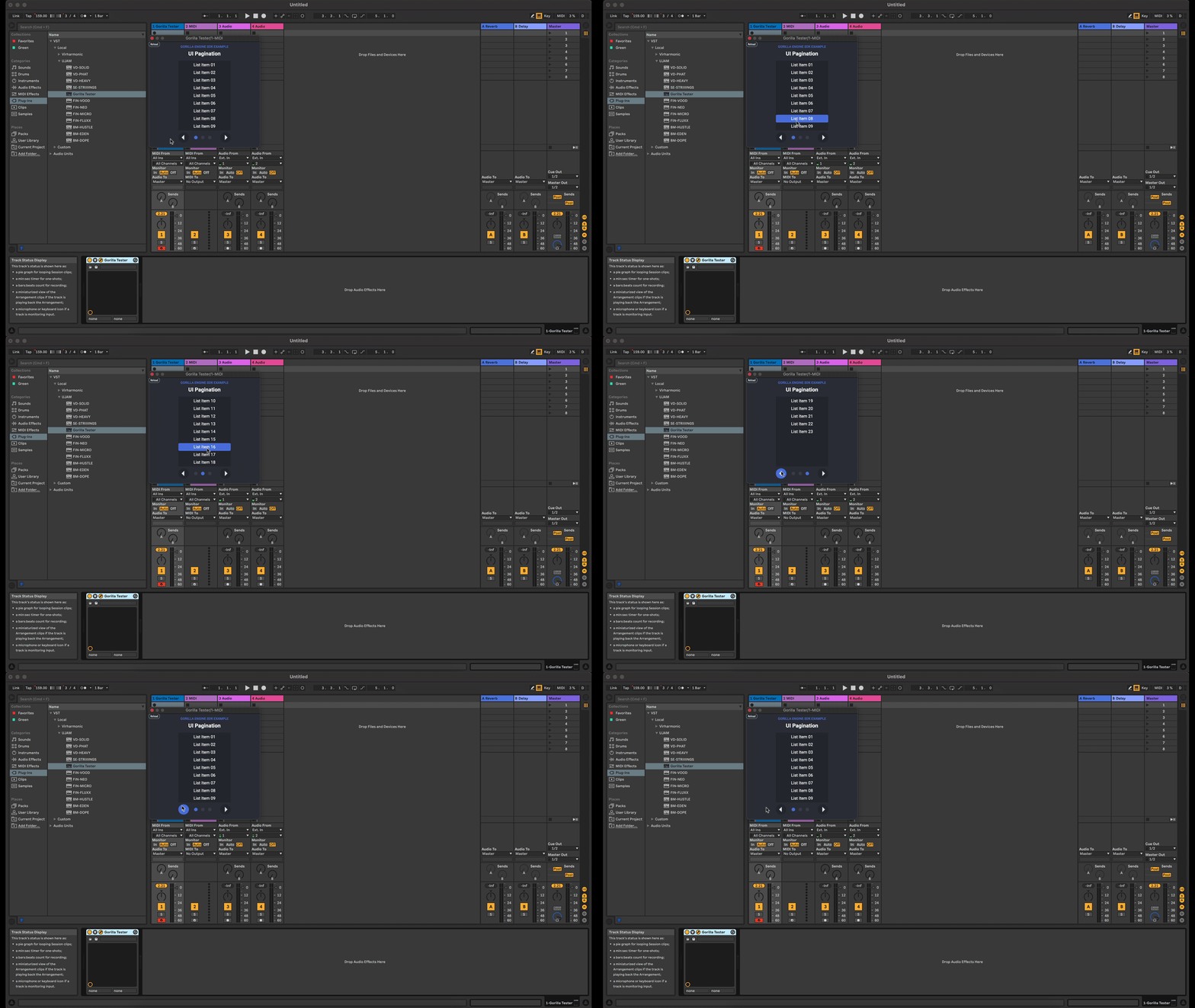
This example of a paginated view can be found in the Examples folder of the Gorilla Engine SDK. It showcases how a list of items can be created in a paginated manner. This could, for example, be used to create an overview of your plugin’s presets.
This example demonstrates:
- How to create a table with multiple entries
- How to build skippable pages using JavaScript
- How bind JavaScript properties to YAML
UI Pagination - JavaScript
Note: The following is not intended to be a step-by-step guide on how to use JavaScript and YAML (we have an Intro to UI Development and a JavaScript reference for beginners). Instead we want to demonstrate how to create a simple skippable paginated table.
The following JavaScript code is identical to .js file found in the plugin_assets folder of the UI Pagination example.
/*jshint esversion: 6 */
const path = require('path')

const blobPath = path.resolve(
  GorillaEngine.getResourcePath(),
  `${GorillaEngine.getPluginName()}_part1.blob`
)
const blob = GorillaEngine.loadBlob(blobPath)
const instrument = blob.loadInstrument(
  blob.getInstrumentNames()[0]
)
GorillaEngine.setActiveInstrument(instrument)

/**
 *
 * P A G I N A T I O N  E X A M P L E  B E L O W
 *
 */

/**
 * This is contant since it depends on the number of list items declared in the yml
 */
const MAX_VISIBLE_ITEMS = 5

/**
 * This can be changed during runtime eg. by reading the filesystem or a web request
 */
let MY_ITEMS = [
    'Lorem ipsum dolor sit',
    'amet consetetur sadipscing',
    'elitr sed diam nonumy',
    'eirmod tempor invidunt ut',
    'labore et dolore magna',
    'aliquyam erat sed diam',
    'voluptua At vero eos et',
    'accusam et justo duo',
    'dolores et ea rebum Stet',
    'clita kasd gubergren no',
    'sea takimata sanctus',
    'est Lorem ipsum dolor',
    'sit amet Lorem ipsum',
    'dolor sit amet consetetur',
    'sadipscing elitr sed diam',
    'nonumy eirmod tempor',
    'invidunt ut labore et',
    'dolore magna aliquyam',
    'erat sed diam voluptua',
    'At vero eos et accusam',
    'et justo duo dolores et',
    'ea rebum Stet clita kasd',
    'gube',
]

const paginationViewModel = {
    currentPage: 0,
    get lastPage() {
        return Math.ceil(MY_ITEMS.length/MAX_VISIBLE_ITEMS)-1
    },
    previous() {
        if (this.currentPage === 0) {
            return
        }
        this.currentPage--
        this.displayPage(this.currentPage)
    },
    next() {
        if (this.currentPage === this.lastPage) {
            return
        }
        this.currentPage++
        this.displayPage(this.currentPage)
    },
    displayPage(page) {
        for (let i = 0; i < MAX_VISIBLE_ITEMS; i++) {
            const itemIx = page * MAX_VISIBLE_ITEMS + i
            this[`item_${i}_visible`] = itemIx < MY_ITEMS.length
            this[`item_${i}_text`] = MY_ITEMS[itemIx] || ""
        }
    }
}

paginationViewModel.displayPage(0)

initViewModel('pagination', paginationViewModel)

const yamlPath = path.join(GorillaEngine.getResourcePath(), `${GorillaEngine.getPluginName()}.yaml`)
GorillaEngine.UI.loadUIfromYAML(yamlPath)
The code above allows us to:
- Load split blob files
- Create a list of all the entries we want to skip through
- Build a view model that gives us separate and skippable pages
Let’s take a closer look.
Loading a blob file
All Gorilla Engine based products, whether they are SDK examples or finished high-end plugins, are based on blob files. If you are not familiar with blob files, and how to create them, take a look at our Gorilla Editor documentation.
const blobPath = path.join(GorillaEngine.getResourcePath(), `${GorillaEngine.getPluginName()}_part1.blob`)
const blob = GorillaEngine.loadBlob(blobPath)
const instrument = blob.loadInstrument(blob.getInstrumentNames()[0])
GorillaEngine.setActiveInstrument(instrument)
Blob files are always split into two separate files. Part one contains e.g. metadata and the attacks of each sample. The second part contains the rest of your samples.
Creating a paginated table
With the following code, we declared how many entries we want to be displayed on a single page, as well as the list of items we want to show up in our table. In a finished product this list could be, for example, the names of your plugin presets.
/**
 * This is contant since it depends on the number of list items declared in the yml
 */
const MAX_VISIBLE_ITEMS = 5

/**
 * This can be changed during runtime eg. by reading the filesystem or a web request
 */
let MY_ITEMS = [
    'Lorem ipsum dolor sit',
    'amet consetetur sadipscing',
    'elitr sed diam nonumy',
    'eirmod tempor invidunt ut',
    'labore et dolore magna',
    'aliquyam erat sed diam',
    'voluptua At vero eos et',
    'accusam et justo duo',
    'dolores et ea rebum Stet',
    'clita kasd gubergren no',
    'sea takimata sanctus',
    'est Lorem ipsum dolor',
    'sit amet Lorem ipsum',
    'dolor sit amet consetetur',
    'sadipscing elitr sed diam',
    'nonumy eirmod tempor',
    'invidunt ut labore et',
    'dolore magna aliquyam',
    'erat sed diam voluptua',
    'At vero eos et accusam',
    'et justo duo dolores et',
    'ea rebum Stet clita kasd',
    'gube',
]
Now that we have laid out the items for our table, the next part allows us to:
- Default to page 0 when instantiating the plugin
- Skip back and forth between pages
- Display one of the pages, based on the list items we already declared
const paginationViewModel = {
    currentPage: 0,
    get lastPage() {
        return Math.ceil(MY_ITEMS.length/MAX_VISIBLE_ITEMS)-1
    },
    previous() {
        if (this.currentPage === 0) {
            return
        }
        this.currentPage--
        this.displayPage(this.currentPage)
    },
    next() {
        if (this.currentPage === this.lastPage) {
            return
        }
        this.currentPage++
        this.displayPage(this.currentPage)
    },
    displayPage(page) {
        for (let i = 0; i < MAX_VISIBLE_ITEMS; i++) {
            const itemIx = page * MAX_VISIBLE_ITEMS + i
            this[`item_${i}_visible`] = itemIx < MY_ITEMS.length
            this[`item_${i}_text`] = MY_ITEMS[itemIx] || ""
        }
    }
}

paginationViewModel.displayPage(0)

initViewModel('pagination', paginationViewModel)
Linking from JavaScript to YAML
With JavaScript laying out how we want our pagination to work, we need to enable it to communicate to its YAML counterpart. YAML will piece together the plugin you end up using in your DAW. In order to connect these two elements, just add the following to your JavaScript file.
const yamlPath = path.join(GorillaEngine.getResourcePath(), `${GorillaEngine.getPluginName()}.yaml`)
GorillaEngine.UI.loadUIfromYAML(yamlPath)
Creating pages and buttons using YAML
The following YAML code is very basic and parts of it can be applied to almost any Gorilla Engine based plugin. If you want to click a button, you will always need a trigger to perform the desired action.
Most of the used properties will hopefully be self-explanatory, however, if you would like an overview of all available UI controls and their properties, take a look at our Gorilla Engine - JavaScript API Reference.
window:
  width: 1280
  height: 720
  background_color: white

  children:

    - trigger:
      x: 5
      y: 40
      width: 30
      height: 30
      action: pagination.previous
      text: "<"
      text_color: black
      background_color: grey
      corner_radius: 15

    - trigger:
      x: 35
      y: 40
      width: 30
      height: 30
      action: pagination.next
      text: ">"
      text_color: black
      background_color: grey
      corner_radius: 15

    - label:
      x: 100
      y: 40
      width: 300
      height: 168
      background_color: grey
      corner_radius: 3
      children:

      - label:
        x: 3
        y: 3
        width: 294
        height: 30
        background_color: 88FFFFFF
        corner_radius: 3
        visible&: pagination.item_0_visible
        value&: pagination.item_0_text

      - label:
        x: 3
        y: 36
        width: 294
        height: 30
        background_color: 88FFFFFF
        corner_radius: 3
        visible&: pagination.item_1_visible
        value&: pagination.item_1_text

      - label:
        x: 3
        y: 69
        width: 294
        height: 30
        background_color: 88FFFFFF
        corner_radius: 3
        visible&: pagination.item_2_visible
        value&: pagination.item_2_text

      - label:
        x: 3
        y: 102
        width: 294
        height: 30
        background_color: 88FFFFFF
        corner_radius: 3
        visible&: pagination.item_3_visible
        value&: pagination.item_3_text

      - label:
        x: 3
        y: 135
        width: 294
        height: 30
        background_color: 88FFFFFF
        corner_radius: 3
        visible&: pagination.item_4_visible
        value&: pagination.item_4_text
Since we previously linked our JavaScript code to YAML we can use, for example, pagination.previous and ` pagination.next on a trigger or pagination.item_0_visible alongside pagination.item_0_text` to display page 0.